Chargebacks consistently score in last place of the things we love about the processing industry.
Log into your portal. This article focuses on merchants with MIDs containing the first four digits 5846.
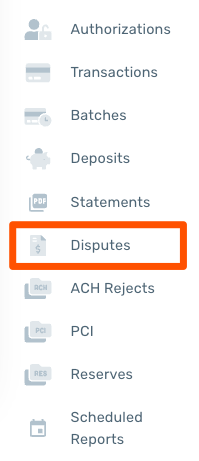
On the left menu, click the drop down under Reporting and choose Disputes
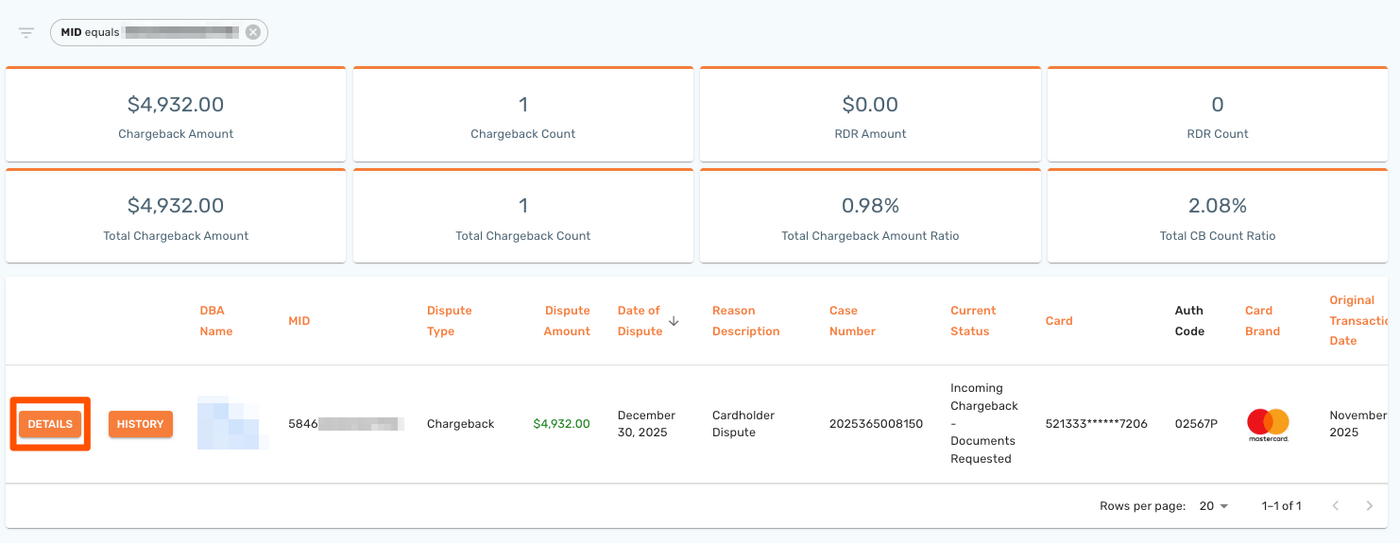
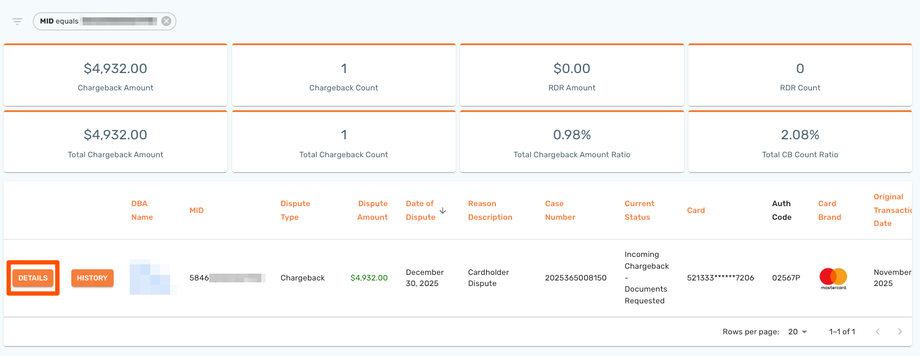
Find the dispute on the Disputes screen and click Details
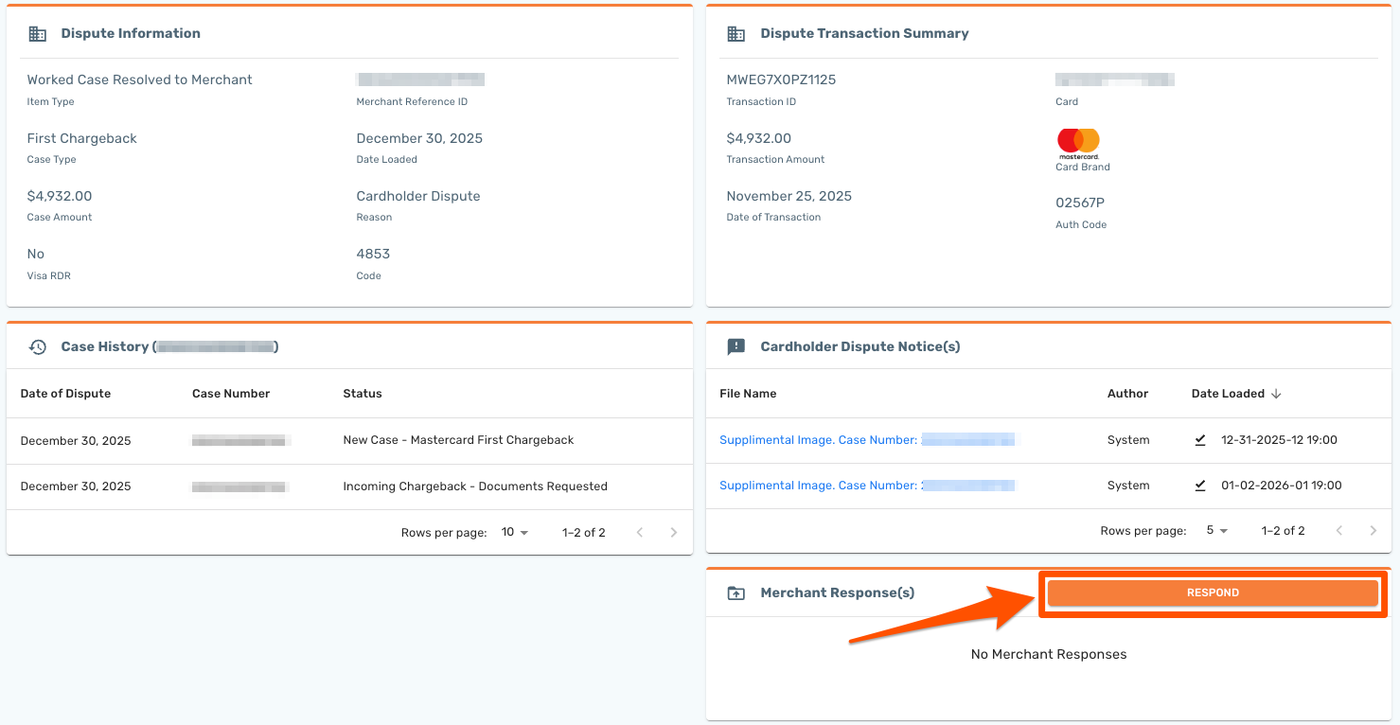
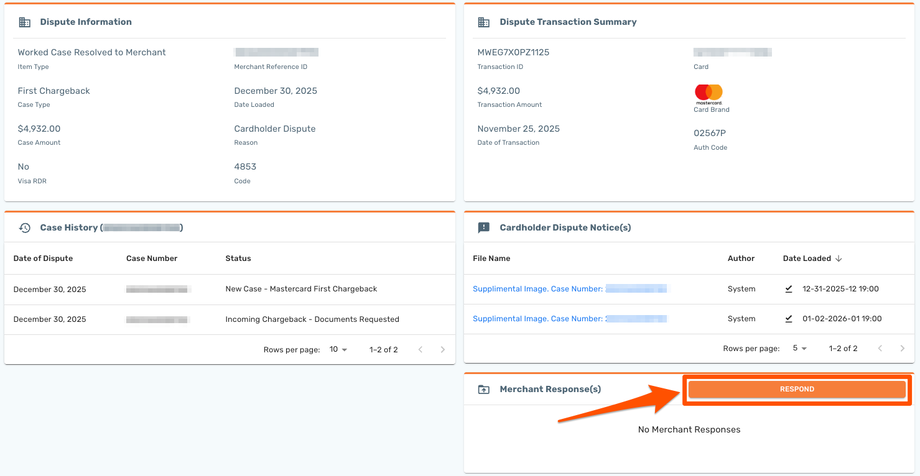
Once you are in the dispute detail screen, there are five key sections:

Dispute Information: Here is where you can see the general information, dates, and reason codes associated with the dispute.
Dispute Transaction Summary: Here is where you can see the information you’ll need to look up the transaction in your processing system. The date of the transaction, the Auth Code, card brand, and the last four of the card number (redacted here).
Case History: Here is a log of all the actions related to the case. These are the actions taken on the dispute itself - initiation, case creation, reversal, etc.
Cardholder Dispute Notices: Here is where you will see the specific dispute from the cardholder. Pay close attention to this and ensure in your response that you address the specific dispute. If a cardholder says they didn’t get the product, your response is going to be quite different from the dispute being that they didn’t authorize the purchase.
Merchant Response(s): This is where you will see your responses and be able to initiate your response to disputes or updates in the case. Note that responses can have supporting documents and you should provide as much as possible. Your typed response will be available in the Detailed Response section inside the Respond action.
To respond to a chargeback, click Respond:
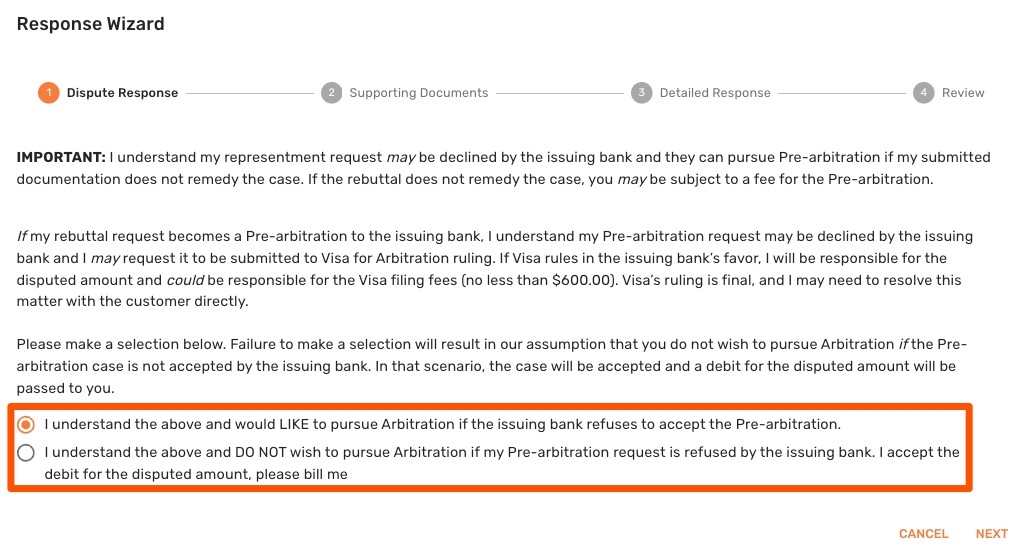
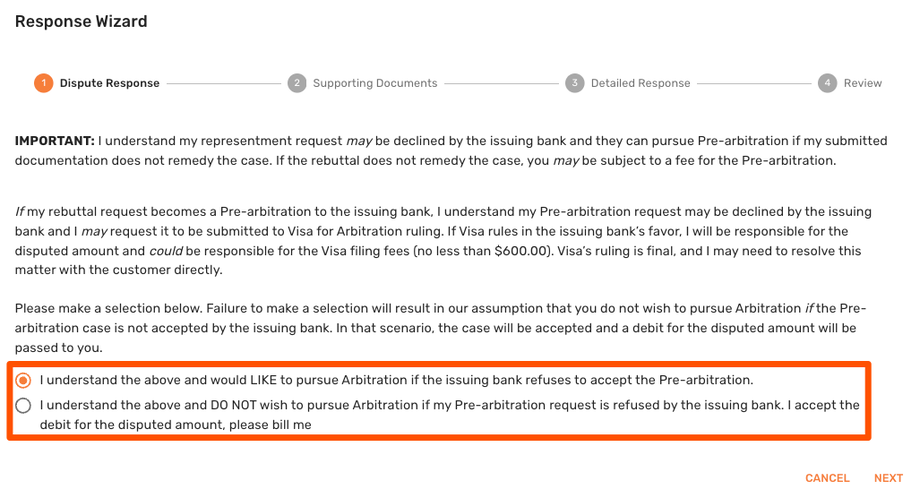
In order to continue, you’ll have to choose whether you would like to pursue Arbitration if the issuer refuses to accept the Pre-arbitration. If you choose the DO NOT option, it will close the case and you will be accepting the dispute.
Click Next. Upload any supporting documents (sales order, documents bearing signature, ID provided at purchase or pickup, email or text correspondence with the customer, delivery slips, GPS tags, etc.
Click Next. Enter a detailed response to the dispute. It’s best to imagine htat you’re an attorney delivering your closing argument. Tell the story of the dispute, how it’s wrong, and why it should be reversed. Do NOT just upload a receipt and call it good.
Click Next. This will show a summary of your dispute and will require you to digitally sign to submit the dispute.
Click Submit Response.